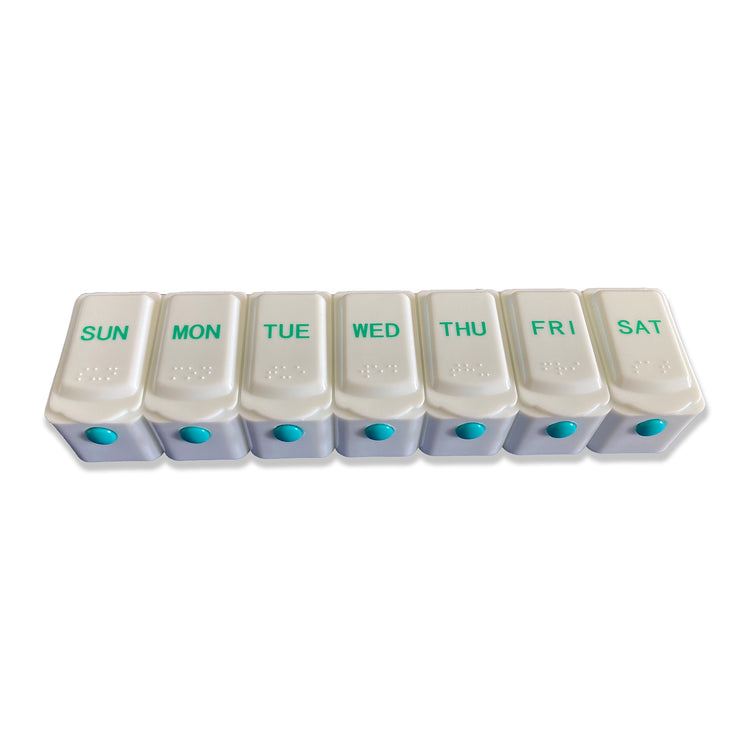
Jumbo push button 7 day pillbox with braille

Jumbo push button 7 day pillbox with braille

DH483

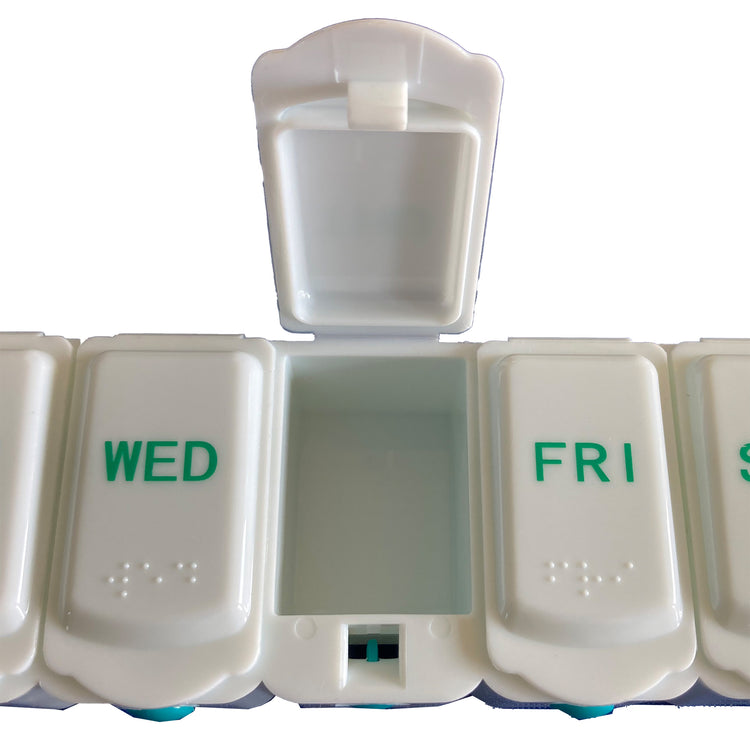
This seven-day pillbox has deep, extra-large compartments to store tablets, and braille and large print on each compartment lid to help you organise your medications and vitamins.

Price £8.00
Sale price £8.00 Was £0.00
In Stock

This product is not eligible for VAT exemption and the price is shown including VAT

The seven compartments have abbreviated days of the week clearly printed and brailled on the push-button lids which allow you to quickly access the tablets inside without having to fiddle with difficult catches.

To use, gently push the button on the front of a compartment and place tablets inside. To close the pillbox lid, gently push down on the lid until you hear a click.

  • Seven-day pillbox with braille labels.
  • Extra-large, deep compartments.
  • Days of the week printed and brailled on the lids.
  • Push-to-open lids.
  • Size: 22.2 × 5.5 × 3.5cm.
  • Weight: 104g.

Help and guidance

Frequently asked questions

Common questions about this product. If you need more help, our team is happy to talk it through with you.

  • My player will not turn on or looks like it is not charging 

    If you hear the battery low announcement twice, then you must charge the unit after the second voice prompt is heard. If the battery level drops below 3.3 volts, then the speaker will be muted until it is charged. Once the charger is connected the time will vary for the battery level to return to 3.3 volts or higher, and during this time the player may appear that it is not charging. 

    Please follow these steps: 

    1. Plug the USB-C charging cable into the player. 
    2. Leave it on charge for at least 15 minutes. 
    3. Keep the charger plugged in, and press the power button to turn the player on. 

    If the battery was completely drained, the player may need to be left on charge for up to 30 minutes before it turns on. 

    If the player does not turn on after charging for one hour try the following: 

    • Check the charger cable is firmly plugged in. 
    • Try a different wall socket. 
    • Make sure the power is switched on at the socket. 
    • Try a different USB-C charging cable. 
  • My USB memory stick is not playing any books 

    If your USB memory stick is not working, it may need to be reformatted. This will remove everything from the stick. 

    Important: Before you start, save your books on your computer. 

    How to reformat a USB memory stick on a Windows PC:

    1. Put the USB stick into your computer. 
    2.  Open File Explorer. 
    3. Locate the USB stick from the list of drives and copy all files and place them on your computer in another location. 
    4. Move back to the USB drive in Explorer, then bring up the context menu options for the USB drive and choose Format. 
    5. Choose FAT32 (or exFAT if FAT32 is not shown). 
    6. Select Start and wait for it to finish. 
    7. Copy your files back on to your stick. 
    8. Remove the USB stick safely. 

    How to reformat a USB memory stick on a Mac:

    1. Insert the USB stick into your Mac. 
    2. Open Disk Utility. 
    3. Select the USB stick from the list of available options and copy the files from the stick to another location on your Mac. 
    4. Move back to your USB stick and choose Erase. 
    5. Set the format to MS-DOS (FAT). 
    6. Select Erase and wait for it to finish. 
    7. Add your books back on to your USB stick. 
    8. Remove the USB stick safely. 
    9. Checking your reformatted stick is working 

    Once your books are copied back on to the USB stick from your computer, insert the stick back into the RNIB Accord player. Turn the player on and check it plays as expected. 

Recently Viewed