Orcam MyEye Smart

Orcam MyEye Smart

HT397

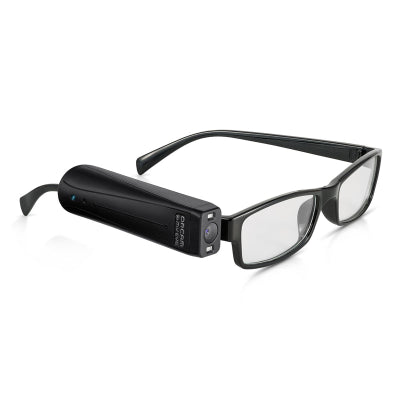
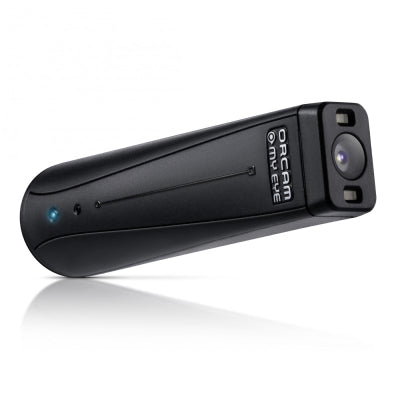
The OrCam MyEye Smart is a lightweight, hands-free device that offers convenient artificial vision through intuitive gestures or voice commands, making it a great choice for those seeking accessibility without the advanced features of the MyEye Pro.

Special order

We work with partners to deliver products on our behalf. We will pass on your contact information to be able to deliver the product effectively. While delivery is usually a few days, it can take up to seven working days.
Price £3,240.00
Sale price £3,240.00 Was £0.00
In Stock
Price £2,700.00 ex VAT
Sale price £2,700.00 ex VAT

Product eligible for VAT exemption.

Are you exempt from paying VAT?

If you are blind or partially sighted, you do not have to pay VAT on specially designed products. To check if you are eligible for VAT exemption — please see our Prices and VAT FAQs.

Price: £3,240.00 inc VAT In Stock

Before ordering we recommend having a chat with a member of our Technology for Life Team to discuss your requirements and ensure you pick the right product for you.

Magnetically mounted on the wearer’s eyeglasses frame and weighing less than an ounce, OrCam MyEye Smart is the only wearable artificial vision tech that is activated by an intuitive pointing gesture or simply by following the wearer's gaze – allowing for hands-free use without the need of a smartphone or wi-fi. Orcam MyEye can be activated by simple voice commands to make it even easier to use.
Please note: MyEye Smart does not include face recognition, colour or bank note identification or recognise the watch gesture to tell the time. These functions are only available on the MyEye Pro (HT375).

Special order

We work with partners to deliver products on our behalf. If you’re buying a special order product, we will pass on your contact information to our partners to enable delivery. We may also quote extended delivery times, outside of our standard terms and conditions for these products.

Important – order cancellations and returns

We are unable to cancel your order once it has been placed. Should you change your mind about this special order product, you will need to accept the delivery and then contact RNIB Helpline to arrange its return; guidance on how to do this can be found in our Returns Policy.

Please retain packaging until you're sure you'd like to keep the product. This product is returnable within 14 days of receipt in an “as new” condition in original, undamaged packaging.

We kindly ask our customers to ensure that any faulty products being returned are packaged securely for stable transit, or the warranty may be voided. Where possible, please use the original packaging.

This item is eligible for VAT exemption. 

  • Lightweight, wireless reading device.
  • Magnetically mounts to arm of eyeglasses.
  • Hands-free use.
  • Does not need wi-fi or a smartphone.
  • Discreetly reads aloud digital or printed text from any surface, in real time.
  • Can follow the wearer’s gaze and recognise simple gestures to start reading.
  • Intuitive voice-activated commands available for easy device use.

Dimensions

  • Measurements: 13 × 76 × 19mm.
  • Weight: 23g.

Warranty

  • Two-year manufacturer’s warranty.

Special order

We work with partners to deliver products on our behalf. If you’re buying a special order product, we will pass on your contact information to our partners to enable delivery. We may also quote extended delivery times, outside of our standard terms and conditions for these products.

Important – order cancellations and returns

We are unable to cancel your order once it has been placed should you change your mind.

Help and guidance

Frequently asked questions

Common questions about this product. If you need more help, our team is happy to talk it through with you.

  • My player will not turn on or looks like it is not charging 

    If you hear the battery low announcement twice, then you must charge the unit after the second voice prompt is heard. If the battery level drops below 3.3 volts, then the speaker will be muted until it is charged. Once the charger is connected the time will vary for the battery level to return to 3.3 volts or higher, and during this time the player may appear that it is not charging. 

    Please follow these steps: 

    1. Plug the USB-C charging cable into the player. 
    2. Leave it on charge for at least 15 minutes. 
    3. Keep the charger plugged in, and press the power button to turn the player on. 

    If the battery was completely drained, the player may need to be left on charge for up to 30 minutes before it turns on. 

    If the player does not turn on after charging for one hour try the following: 

    • Check the charger cable is firmly plugged in. 
    • Try a different wall socket. 
    • Make sure the power is switched on at the socket. 
    • Try a different USB-C charging cable. 
  • My USB memory stick is not playing any books 

    If your USB memory stick is not working, it may need to be reformatted. This will remove everything from the stick. 

    Important: Before you start, save your books on your computer. 

    How to reformat a USB memory stick on a Windows PC:

    1. Put the USB stick into your computer. 
    2.  Open File Explorer. 
    3. Locate the USB stick from the list of drives and copy all files and place them on your computer in another location. 
    4. Move back to the USB drive in Explorer, then bring up the context menu options for the USB drive and choose Format. 
    5. Choose FAT32 (or exFAT if FAT32 is not shown). 
    6. Select Start and wait for it to finish. 
    7. Copy your files back on to your stick. 
    8. Remove the USB stick safely. 

    How to reformat a USB memory stick on a Mac:

    1. Insert the USB stick into your Mac. 
    2. Open Disk Utility. 
    3. Select the USB stick from the list of available options and copy the files from the stick to another location on your Mac. 
    4. Move back to your USB stick and choose Erase. 
    5. Set the format to MS-DOS (FAT). 
    6. Select Erase and wait for it to finish. 
    7. Add your books back on to your USB stick. 
    8. Remove the USB stick safely. 
    9. Checking your reformatted stick is working 

    Once your books are copied back on to the USB stick from your computer, insert the stick back into the RNIB Accord player. Turn the player on and check it plays as expected. 

Recently Viewed